Static Application Security Testing (SAST) in Deckhouse Code looks for vulnerabilities in the source code of a project. The scanner behind it is Semgrep, and the scan is called sast.
The scan is mandated: it is added to a project’s pipeline by a scan execution policy that lives in a separate security policy project, not by the project’s own .gitlab-ci.yml. The policy — that is, the security team — decides what is scanned and what fails the pipeline, and the scanned project cannot override it from its own CI/CD settings.
Security scanning is gated behind the instance-level feature flag fe_security_scan_policies, which is disabled by default. While it is off, policy pages and scanner integration pages are hidden and no scan jobs are added to pipelines. Ask an instance administrator to enable it.
What the scan does
The sast scan adds two jobs to the pipeline, both in the fe-security-scanner stage:
| Job | What it does |
|---|---|
semgrep_sast_scan |
Runs the scanner over the repository and publishes its raw JSON output as an artifact. |
semgrep_sast_junit |
Reads that JSON, builds a JUnit test report and a security report from it, and decides the outcome: the job succeeds when no finding reaches the blocking threshold, and fails otherwise. It runs on a Ruby image. |
Both jobs upload their artifacts with when: always, so a blocked pipeline still carries the findings that blocked it.
Findings reach the same places as those of every other policy scanner:
| Report | Where to view |
|---|---|
| Tests (JUnit) | “Tests” tab of the pipeline and the test summary in the merge request |
| Security report (SAST) | Vulnerability report page |
| Findings forwarded to DefectDojo | DefectDojo, when that integration is configured |
Prerequisites
Before the scan can run, make sure that:
- an instance administrator has enabled the
fe_security_scan_policiesfeature flag; - a security policy project is linked to the project or to a group above it;
- a GitLab Runner with a
dockerexecutor is available, and it can pull both images the scan uses: the scanner image (see “Where the scanner image comes from” below) and the Ruby image the second job runs on,ruby:3.3.10-slimby default, which an installation can redirect with the instance variableFE_SCANS_REPORT_CONVERTER_IMAGE.
Turning the scan on
Add a sast action to .gitlab/security-policies/policy.yml in the security policy project:
scan_execution_policy:
  - name: SAST everywhere
    enabled: true
    rules:
      - type: pipeline
        branches: ["*"]
    actions:
      - scan: sast
Then link the policy project to the target project or group in “Settings” → “Security policy”. Every pipeline the rules match then gains the two jobs above.
The scan options can also be edited in the policy editor, which renders the form described below.
What the policy sets
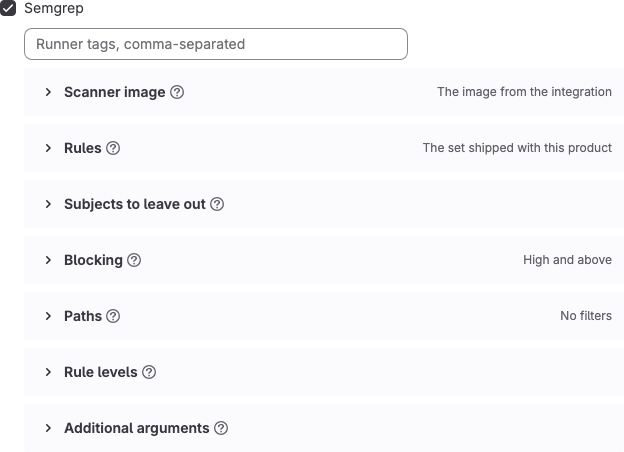
The form for the sast action is built from the groups “Scanner image”, “Rules”, “Subjects to leave out”, “Blocking”, “Paths”, “Rule levels” and “Additional arguments”. Every option belongs to the policy: the server writes the values into the job while the pipeline is rendered, so the scanned project’s own CI/CD variables cannot change them.
Each group opens and closes on its own title, and all of them start closed. A closed group carries a statement of its own: the policy writes nothing into it, so that part of the scan keeps the answer the server gives without it — for the scanner image, the one the Semgrep integration names where it names one, and the value shipped with this product everywhere else. Open a group and fill in a field, and the policy takes that decision over for every project it covers. Save the policy and open it again, and the groups it holds something in come back open, so a saved policy always shows everything it sets.
A group is named after the choice it is built around, and that choice is drawn without its own name repeated inside the group: opening “Scanner image” goes straight to the image sources, “Rules” to the rule sources, “Paths” to the filter sources, “Blocking” to the threshold, “Rule levels” to the three levels. The fields a choice reveals keep their own names underneath it, and the hint ("?") of the leading choice sits beside the group’s title.
What a closed group has settled is stated at the end of its title line. That is what makes the closed form readable: the threshold and the rule source can be read without opening anything.
| Group | What its closed line states |
|---|---|
| “Scanner image” | Which of the three sources the image comes from — “The image from the integration” where the integration names an image, and “The image shipped with this product” everywhere else |
| “Rules” | Where the rules come from — “The set shipped with this product” until the policy picks another source |
| “Subjects to leave out” | Nothing. The group holds checkboxes, and the line states a choice out of a list |
| “Blocking” | The threshold — “High and above” until the policy picks another |
| “Paths” | Where the path filters come from — “No filters” until the policy picks another |
| “Rule levels” | The levels the policy switched on, such as “High, Medium”. Blank while the policy has set none |
| “Additional arguments” | Nothing. Free text carries no choice out of a list, so there is nothing to state |
The lines of “Scanner image”, “Rules”, “Blocking” and “Paths” always carry a value, because their control is a set of radio buttons, which always shows an answer: the policy’s, or the one the server would give while the policy has said nothing. The line and the control therefore agree. “Rule levels” holds a set of levels, and while the policy has set none there is nothing to name — the three boxes come up ticked instead, which is the same state.
No group here carries a checkbox beside its title. Where another scanner’s group carries one, that group is a module that can be switched off; these groups are the scan itself. Removing the sast action from the policy is what turns the scan off. The checkboxes inside “Subjects to leave out” and “Paths” each carry one setting of their own.
A field that answers to one choice is drawn under that choice and nowhere else. Picking “A file in the security policy project” as the rule source puts the rule file path beneath that option; picking another source takes the field away.
Scanner image
This group sets which image the scan runs in. It opens on “Image source”, a choice of three:
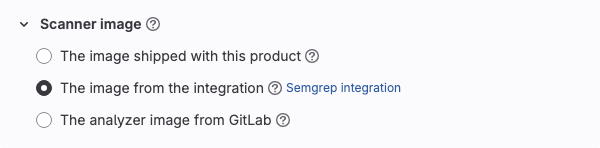
| Source | Which image the scan runs |
|---|---|
| “The image shipped with this product” | The image this release pins, or the one an administrator set for the whole installation with the instance variable FE_SCANS_SEMGREP_IMAGE. The image carries its own version, so this source has no version field. |
| “The image from the integration” | The registry the Semgrep integration mirrors the scanner in, or the one prepared image that integration names — see “The Semgrep integration”. |
| “The analyzer image from GitLab” | registry.gitlab.com/security-products/semgrep, at the tag the policy names. Needs an installation that can reach that registry. |
| Field | What it sets |
|---|---|
| “Image version” | The tag the analyzer image is pulled at, as the registry lists it: three numbers, such as 6.25.0, or a digest. Drawn under “The analyzer image from GitLab” and nowhere else, because the other two sources carry their own version. Left empty, the tag this release ships is used. |
The image tag and the semgrep version are two different numberings: a larger image tag has meant an older semgrep. The hint on “Image version” names the semgrep version that ships with this product and the image tag carrying it, and the field’s list of suggestions names the same for every tag this release knows of. The hint beside the group’s title states which image this installation will run: the prepared image the integration names, the registry it mirrors the scanner in, or the image the installation itself is set to use.
Beside “The image from the integration” stands a link to the Semgrep integration page, in every state of the choice, for a policy owned by a group. A policy owned by a project is settled by the group above it, whose settings the project’s maintainer may not be able to open, so that choice carries no link there.
“The image from the integration” is the one source that can be unavailable, and there is a single reason for it: the integration names no image for the scan to pull, either because no Semgrep integration is set up for the group, or because one is set up and names neither a registry nor a prepared image. The choice then stays in the list, greyed out, with the reason written on the choice itself. The other two sources are always available.
A policy that names no source shows the answer the server would give without it: “The image from the integration” where the integration names an image, and “The image shipped with this product” everywhere else — see “Where the scanner image comes from”.
Rules
This group sets which rules the scan runs.
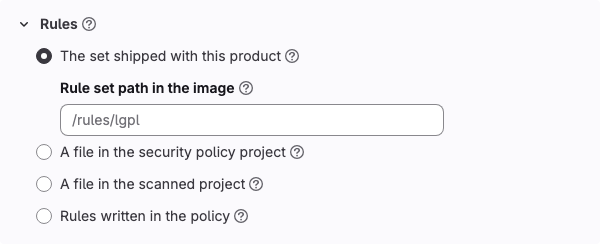
| Field | What it sets |
|---|---|
| “Rule set” | Where the rules come from. The sources are described below. Default: “The set shipped with this product”. |
| “Rule set path in the image” | Which of the sets carried inside the scanner image to run (see “Rule sets in the image”). Default: /rules/lgpl. The scan stops if the image has no set at this path. |
| “Rules” | The rules themselves, in the scanner’s own YAML. Shown when the source is “Rules written in the policy”. |
| “Rule file path” | Path to the rule file inside the project the rules are read from. Default: .semgrep.yml. |
| “Replace the shipped set” | Off by default: your own rules run alongside the shipped set. Ticked, they run instead of it, and everything the shipped set covered stops being checked. |
Every field carries a hint behind the “?” beside its name; the hint of “Rule set”, which the group is named after, sits beside the group’s title.
The rule sources differ in who owns the file:
| Source | Where the rules live | Who controls them |
|---|---|---|
| “The set shipped with this product” | Inside the scanner image, at the path named above | The product release |
| “A file in the security policy project” | The project this policy lives in, on its default branch | The security team |
| “A file in the scanned project” | The repository being scanned, at the commit being built | The scanned project |
| “Rules written in the policy” | The policy itself | The policy author |
The server reads “The set shipped with this product”, “A file in the security policy project” and “Rules written in the policy”, and writes them into the job. “A file in the scanned project” is read by the job itself, from its own checkout, at the commit being built. That is also the one source the scanned side writes: a commit that rewrites that file rewrites the rules of the scan that checks it. Leaving “Replace the shipped set” unticked keeps a baseline in place even when the project’s file is emptied.
A rule file the policy named but the scan could not be given stops the job: it prints why and fails, and the shipped set does not step in for the missing file.
Subjects to leave out
This group sets which subjects of the shipped set the scan leaves out.
| Field | What it sets |
|---|---|
| “Leave out the secret rules” | Off by default. Ticked, the rules that look for credentials committed to the repository stay out of the run. |
| “Leave out the configuration rules” | Off by default. Ticked, the rules that read configuration and infrastructure code — Terraform, Dockerfiles, Kubernetes manifests, CI configuration — stay out of the run. |
| “Leave out the malicious code rules” | Off by default. Ticked, the rules that look for the marks of deliberately hidden code stay out of the run. |
The boxes appear while the rules come from the shipped set, because rules of your own carry no subject to leave out. A ticked box leaves the subject out; an empty one runs it, which is what a policy written before these fields existed goes on doing. The group’s hint states what the choice is for: where another mandated scan already covers one of these subjects, both report it, and the same line is a finding twice.
What each subject holds, and the rule set an exclusion needs, are in “Subjects inside the shipped set”.
Blocking
This group sets what a finding does to the pipeline.
| Field | What it sets |
|---|---|
| “Blocking threshold” | What fails the pipeline. Findings below the threshold are still reported and still reach the vulnerability report; the threshold decides the pipeline’s outcome and nothing else. Default: “High and above”. |
Threshold values:
| Value | What fails the pipeline |
|---|---|
| “High and above” (default) | A high finding. Medium and info are reported. |
| “Medium and above” | Medium and high. Info is reported. |
| “Any finding” | Any finding, whatever its level. |
| “Report only, block nothing” | Nothing. Findings are still reported and still reach the vulnerability report and DefectDojo. |
Semgrep reports at ERROR, WARNING and INFO, which the scan shows as high, medium and info. Semgrep has no critical and no low, so a threshold named after either would be one no finding could reach: “critical” would block nothing while looking strict, and “low” would repeat “medium”. “Report only, block nothing” puts the decision to block nothing into the policy as a value of its own.
Paths
This group sets what the scan looks at, and what it leaves out.
| Field | What it sets |
|---|---|
| “Path filters” | Where the lists of paths to leave out come from. Default: “No filters”. |
| “Filter file path” | Path to the filter file inside the project the filters are read from. Default: .semgrepignore. |
| “Skip these paths” | One path or pattern per line: third-party code, fixtures, generated files. |
| “Look only at these paths” | One path or pattern per line. Everything else is left out of the scan entirely. |
| “Honor the repository’s .gitignore” | Off by default. |
Whichever source the filters come from, the job applies its own built-in exclusions — node_modules/, vendor/, dist/, build/, .venv/ and .git/ — on top of whatever the policy set, so dependency trees stay out of the scan even where the policy’s own filters say nothing about them.
Filters take their source the same way rules do:
| Source | Where the list lives | Who controls it |
|---|---|---|
| “No filters” | — | — |
| “A file in the security policy project” | Beside the policy, applied to every project it covers | The security team |
| “A file in the scanned project” | The repository being scanned | The scanned project |
| “Lists written in the policy” | The two lists in the form | The policy author |
By default the job sets aside any .semgrepignore it finds in the scanned repository — including nested ones in subdirectories — before the scan starts. Picking “A file in the scanned project” is what turns that off:
“A file in the scanned project” and “Honor the repository’s .gitignore” both hand the scanned project the say over what the mandated scan examines. A commit in that project can then narrow the scan that checks it, and the narrowing stays invisible in the policy. A security team may well decide that each project knows its own third-party directories best; the delegation is then recorded in the policy, since both settings stay off until this group is opened and one of them is set.
About the two lists:
- “Look only at these paths” is stronger than “Skip these paths”. An exclusion removes what it names; an inclusion removes everything else. A single
src/**quietly takeslib,configand your migrations out of the scan. - They are applied in that order — inclusions first, then exclusions — so an exclusion still applies inside what an inclusion let through.
A pattern that matches nothing passes the form’s validation. The job catches it: it prints how many files the scanner read, and fails when that number is zero.
Rule levels
This group sets which levels of rule run at all.
| Field | What it sets |
|---|---|
| “Rule levels” | “High” (ERROR), “Medium” (WARNING), “Info” (INFO). All three boxes come up ticked, which is what a scan runs while the policy has set no levels of its own. |
A level is exactly the rules the scanner marks with it: “High” the ERROR rules, “Medium” the WARNING rules, “Info” the INFO rules — and a finding is reported at the level of the rule that found it. Unticking a level takes exactly that level’s rules out of the run.
The last level left ticked cannot be unticked. An emptied list is removed from the policy, and a policy that names no levels is the state that runs every level.
“Rule levels” and “Blocking threshold” look alike and do different things:
| Field | Effect | A finding below the level |
|---|---|---|
| “Rule levels” | Which rules are evaluated | Does not exist: the rule never ran |
| “Blocking threshold” | Which findings fail the pipeline | Is in the report, but does not block |
A threshold covers its own level and every level above it, which is what “and above” says; a rule level covers the rules the scanner marks with that level and no others.
Leaving a level out therefore removes its findings from the report as well as from blocking: the vulnerability report and DefectDojo both get smaller, and the job log says nothing about it. A threshold that no ticked level can reach never fires; the form says so when that happens.
Additional arguments
This group sets the flags the rest of the form does not name.
| Field | What it sets |
|---|---|
| “Additional arguments” | Flags passed to the scan as written. |
“Additional arguments” tunes the resources of the run: timeouts, memory limits, maximum file size. Flags that redirect or silence the report are refused, as are the flags this form already owns: output and report formats (--json, --sarif, --junit-xml, --gitlab-sast, --gitlab-secrets, --output, --text and their paired *-output forms), --config, --metrics and --baseline-commit.
The hint on this field also states where the scan’s findings end up: they are published as a security report, so they reach the vulnerability report and whatever the administrator has connected to it.
Rule sets in the image
By default the scan runs the rule set carried inside the scanner image, at /rules/lgpl. The image carries more than one set, and “Rule set path in the image” chooses between them:
| Path in the image | Rules | Rules per language |
|---|---|---|
/rules/lgpl (default) |
152 | javascript 83, kotlin 58, swift 5, java 4, typescript 4, generic 2 |
/rules/lgpl-cc |
97 | ruby 40, java 39, php 9, python 6, javascript 1, typescript 1, generic 1, yaml 1 |
/rules/gitlab |
5 | java 2, generic 1, javascript 1, kotlin 1 |
/rules |
592 | the sets above, plus the rule files stored beside them: scala 86, python 79, c 62, cpp 62, go 27, csharp 22 and more |
A rule may name several languages, so the per-language figures add up to more than the rule count. The /rules row is the whole directory: pointing the scan at it loads every set below it and the files beside them.
These figures were measured in registry.gitlab.com/security-products/semgrep:6.25.0 and describe that image; a newer image may carry a different set. Each directory in the image carries its own license file, and “Rule set path in the image” is where you name the one to run.
The default set covers javascript, kotlin, swift, java, typescript and generic. Python, Go, Ruby, PHP, C, C++, C# and Scala are outside it. A repository written in one of those, scanned at the default path, finishes successfully with no findings: no rule applied to it. Such a repository has no SAST coverage at all, and its green pipeline says nothing about the code.
Point “Rule set path in the image” at a set that covers its language, add rules of your own through the “Rule set” field, or have an administrator name an image carrying a suitable set on the Semgrep integration and pick “The image from the integration” in the policy. Whoever brings a set of their own owns what is in it and the terms it comes under.
Rules of your own are added through the “Rule set” field and, with “Replace the shipped set” left unticked, run alongside whichever set the image provides.
Subjects inside the shipped set
The rules in the set are marked by subject: what a rule judges. Measured on a rule set of 2826 rules:
| Subject | Rules | What its rules judge |
|---|---|---|
| Code | 1988 | The program’s own code |
| Configuration | 522 | Configuration and infrastructure code: Terraform, Dockerfiles, Kubernetes manifests, CI configuration |
| Secrets | 225 | Credentials committed to the repository |
| Malicious code | 91 | The marks of deliberately hidden code: obfuscation, code assembled at run time, execution routed through indirection |
A newer image may carry a different set. Configuration, secrets and malicious code are the subjects the policy can leave out, in the “Subjects to leave out” group; the code rules run in every scan.
An exclusion needs a rule set that carries an index of its subjects. The set published in GitLab’s own image carries none, so a ticked box there stops the job, naming the subjects it was asked to leave out and the rule set that has no index to leave them out by — see “Troubleshooting”. Rules written in the policy carry no subjects either, which is why the boxes are hidden while they are the source.
The secret rules and the secret_detection scan cover the same ground, and the same line then arrives as two findings at two severities. Measured on one run: semgrep filed a token committed to the repository into the SAST report at Info, while secret_detection filed the same token into its own report at Critical. Neither set of findings sits inside the other — an AWS key was found by semgrep alone, a Slack webhook URL by secret_detection alone — so leaving the secret rules out moves the subject to secret_detection and takes those findings of its own off the SAST report with it.
The same reading applies to the configuration rules where a dedicated infrastructure scanner already covers that ground, and to the malicious code rules, which read intent: a repository that obfuscates or assembles code at run time for reasons of its own sees them fire.
Where the scanner image comes from
The image the scan runs in is resolved by the server once, before the job starts, and written into the job as a literal value. It never becomes a CI/CD variable, so the scanned project’s own settings cannot point the scan at a different scanner.
Which image that is follows from the source the policy names in its “Scanner image” group:
| Source in the policy | What the scan pulls |
|---|---|
| “The image shipped with this product” | The image an administrator set for the whole installation with the instance environment variable FE_SCANS_SEMGREP_IMAGE, or the image this release pins where that variable is unset. |
| “The image from the integration” | The prepared image the Semgrep integration names, exactly as written; where the integration names a registry instead, the scanner from that registry, at the version the policy carries or the one this installation runs. |
| “The analyzer image from GitLab” | registry.gitlab.com/security-products/semgrep, at the version named in “Image version”, or at the version this release ships while that field is empty. |
A prepared image on the integration answers for one source and no other: the administrator who named it named what “The image from the integration” pulls, including its version, so a version set in the policy does not apply to it. A policy asking for the shipped image, or for GitLab’s analyzer image, gets the image it asked for.
A policy that names no source at all was written before this field existed, and it keeps the answer it has always had: the image the integration names, then the image the instance was set to, then the one the release ships. A version such a policy carries still applies, unless the integration names a prepared image.
The scanned project’s own integration record is ignored: the image comes from the side that mandates the scan.
The Semgrep integration
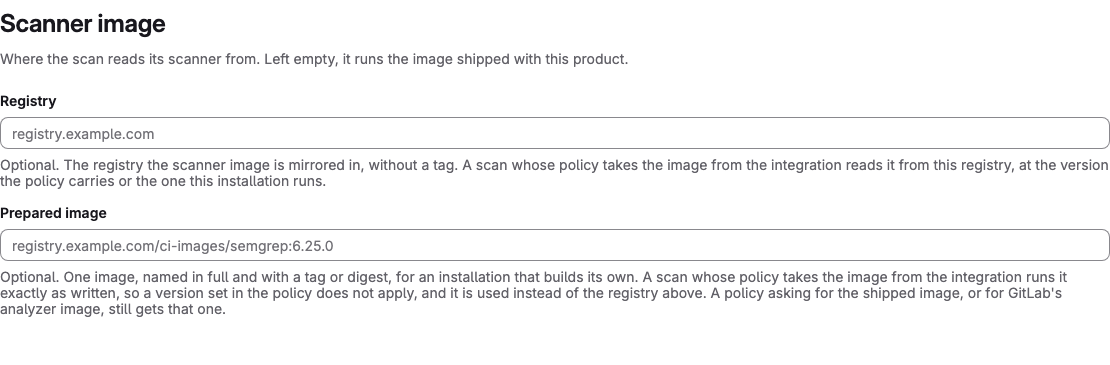
The integration holds where the scanner image is read from. It is set on a group, so an installation names the registry once for every policy below it; on a project the integration shows no fields, which is how a reader learns the scan is configured above it.
Open “Settings” → “Integrations” → “Semgrep” on the group and fill in either field — both are optional:
| Field | What it sets |
|---|---|
| “Registry” | The registry the scanner image is mirrored in, without a tag. For example, registry.example.com or registry.example.com/mirror. A scan whose policy takes the image from the integration reads it from here, at the version the policy carries or the one this installation runs. |
| “Prepared image” | One image, named in full and with a tag or a digest, for an installation that builds its own. For example, registry.example.com/ci-images/semgrep:6.25.0. A scan whose policy takes the image from the integration runs it exactly as written, so a version set in the policy does not apply. Takes precedence over “Registry”. |
With both fields empty the integration names no image, so “The image from the integration” cannot be picked in a policy and the scan runs the image shipped with this product. What the scan looks for is set in the policy.
The version shipped with this product
This release ships registry.gitlab.com/security-products/semgrep:6.25.0, pinned to that exact version. One tag pins both halves of the scanner at once — the engine and the rule sets carried inside the image — because both live in the same image.
The “Image version” field in the policy takes either form of pin:
- a version number, such as
6.25.0, which a person can read and compare; - a digest, such as
sha256:aafbcaff…, which names one build and cannot be moved to another.
Floating tags (latest, stable, a tag that is a major number on its own, such as 6) and references that carry a registry address are refused: the registry is the integration’s to name, and the policy names only the version.
The version shipped with a release is reviewed when Deckhouse Code is updated, so it moves forward with the product.
Installations with no route to the internet
An installation with no route to the internet provides both images the scan uses:
| Image | Default | How to redirect it |
|---|---|---|
| Scanner | registry.gitlab.com/security-products/semgrep:6.25.0 |
The instance variable FE_SCANS_SEMGREP_IMAGE, which redirects “The image shipped with this product”; or the “Registry” or “Prepared image” field of the Semgrep integration, for a policy that takes the image from the integration |
| Report converter | ruby:3.3.10-slim, from Docker Hub |
The instance variable FE_SCANS_REPORT_CONVERTER_IMAGE |
Copy both images into your own registry, as GitLab’s own offline documentation prescribes for its analyzer images, then point the corresponding setting at that registry. Deckhouse Code names both images and pulls them from outside.
The GitLab dependency proxy leaves the scanner image outside its reach. The proxy is a pull-through cache for images stored on Docker Hub, and the scanner image is published on registry.gitlab.com; of the two images, it can cache the Ruby converter. An installation that wants to stop pulling the scanner image from outside on every run — with or without a route to the internet — copies it into its own registry and names that copy in FE_SCANS_SEMGREP_IMAGE or in the “Registry” field.
Semgrep’s paid features
Everything described on this page runs on the open version of the scanner. Semgrep capabilities that lie outside it:
| Capability | In the open version | What Deckhouse Code offers instead |
|---|---|---|
| Cross-file data-flow analysis | No, within a single file only | Nothing; the limitation stands |
| Pro rules | No | Rules of your own, through the “Rule set” field |
| Dependency analysis (Supply Chain) | No | The CodeScoring integration, or the dependency_scanning scan |
| Validity checking of discovered secrets | No | Nothing |
The paid capabilities work through the vendor’s cloud. Turning them on means the scan uploads its findings — and the code context around them — to Semgrep’s servers, outside your installation. An installation with no route to the internet has nothing to reach that cloud through, so the capabilities are unavailable there.
The mandated scan keeps everything inside the job. It runs semgrep scan with --metrics=off and --disable-version-check, so findings and usage telemetry stay where the job put them. Before the scanner is even located, the job clears every SEMGREP_* and PYTHON* variable it inherited: SEMGREP_RULES and SEMGREP_BASELINE_COMMIT among them are documented equivalents of --config and --baseline-commit, and left in place they would let the scanned project’s CI/CD settings replace the rule set or the comparison base of the scan that checks it.
Troubleshooting
The scan does not appear in the pipeline
Check that:
- the
fe_security_scan_policiesfeature flag is enabled on the instance; - the security policy project is linked to the project, and
policy.ymlcontains a- scan: sastaction; - the policy’s rules match the pipeline (branch, pipeline type);
- a GitLab Runner with a
dockerexecutor is available.
The job fails with “no rule set at … in this image”
The path in “Rule set path in the image” does not exist in the image the scan resolved. Check the path against the table above, and check which image is actually in use: with “The image from the integration” picked, a “Prepared image” set on the integration may carry a different layout.
The job fails with “carries no class index to switch them off by”
A box in “Subjects to leave out” is ticked, and the rule set the scan resolved carries no index of its subjects — the set published in GitLab’s own image carries none. Untick the boxes, or point the scan at a rule set that carries the index. The job prints the subjects it was asked to leave out and the rule set it read.
The neighbouring message, that the index holds no rule in any of the named subjects, is answered the same way.
The job fails with “semgrep read no files at all”
The scan examined nothing, so it refuses to report success. The usual causes are a “Look only at these paths” pattern that matches nothing, filters that removed the whole repository, or a checkout with nothing in it. The job’s log prints how many files it read and how many the filters removed.
The scan succeeds but finds nothing
Most often the rule set does not cover the language of the repository — see the warning in “Rule sets in the image”. Check the job log: it prints the rule set path in use and the number of rules loaded. Narrowing “Rule levels” has the same effect for a different reason: a level the policy unticked never runs, so its findings are absent from the report entirely.