Deckhouse Code signs users in through external authentication providers (OmniAuth) and takes group memberships and access rights from an LDAP directory. The provider behaviour, the synchronization rules and the decisions that grant or withdraw access hold for every installation type; the place where the settings are written differs:
- Linux package — the
/etc/gitlab/gitlab.rbfile; - Omnibus Docker — the
GITLAB_OMNIBUS_CONFIGvariable or/etc/gitlab/gitlab.rbon the configuration volume; - Helm Chart — the chart values;
- Deckhouse Kubernetes Platform module — the
CodeInstanceresource.
The keys and manifests for every type are on Configuration.
The settings below are named as the product reads them. The page of your installation type gives the key each one is written under.
Sign-in restrictions and password authentication
Sign-in of local accounts is controlled in “Admin” → “Settings” → “General” → “Sign-in restrictions”. The “Allow password authentication for the web interface” checkbox shows whether an account with a password signs in to the web interface alongside the external providers; in the interface the checkbox is read-only.
To turn password authentication for the web interface on, open the Rails console:
- Linux package
- Omnibus Docker
- Helm Chart
- Deckhouse Kubernetes Platform module
sudo gitlab-rails consoledocker exec -it code gitlab-rails consoled8 k -n code exec -it deploy/code-toolbox -- gitlab-rails console -e productiond8 k -n d8-code exec -it -c toolbox deploy/toolbox -- gitlab-rails console -e productionRun the following command in it:
Gitlab::CurrentSettings.update!(password_authentication_enabled_for_web: true)Password authentication for Git over HTTPS and two-factor authentication for the whole instance are set in the same section of the admin area, see the Users and access page.
OmniAuth configuration
The general OmniAuth parameters apply to every provider; OpenID Connect and SAML add parameters of their own.
Supported providers
The name parameter of a provider entry accepts one of the following values:
openid_connect— OpenID Connect (described below);saml— SAML (described below);oauth2_generic— any OAuth 2.0 provider;jwt— JWT authentication;github— GitHub;gitlab— GitLab.com;google_oauth2— Google;azure_activedirectory_v2— Microsoft Entra ID (Azure AD);atlassian_oauth2— Atlassian;crowd— Atlassian Crowd;auth0— Auth0;alicloud— AliCloud;salesforce— Salesforce;shibboleth— Shibboleth.
Signing in through LDAP is configured separately, in the LDAP server section (see LDAP synchronization).
General OmniAuth parameters
The following parameters hold for every provider:
enabled: Allows signing in through external providers. Default —true.providers: The list of providers users are allowed to sign in through. Default —[].allow_single_sign_on: The list of providers for which an account is created automatically on the first sign-in (for example,['openid_connect']). Also acceptstrue(all providers) andfalse. If automatic creation is disabled, the user must first get a Deckhouse Code account and then link it to the provider. Default —false.block_auto_created_users: Iftrue, automatically created accounts are blocked pending administrator approval. Default —true.auto_link_ldap_user: Links the account to an LDAP account on the first sign-in (see Linking OIDC accounts to LDAP). Default —false.auto_link_user: Links a sign-in through a provider to an existing Deckhouse Code account by email address. Accepts a list of providers or thetrueandfalsevalues. Default —false.auto_sign_in_with_provider: The name of the provider whose sign-in page the user is redirected to automatically, bypassing the Deckhouse Code sign-in page. Default —false.external_providers: The list of providers whose accounts are created as external. Default —[].allow_bypass_two_factor: The list of providers that do not require two-factor authentication on sign-in. Also accepts thetrueandfalsevalues. Default —false.sync_profile_from_provider: The list of providers whose data updates the user profile on every sign-in. Also accepts thetrueandfalsevalues. Default —false.sync_profile_attributes: The list of profile attributes to update during synchronization:name,email,location. The synchronized attributes become read-only. Default —['email'].
OpenID Connect (OIDC)
Providers are listed in the providers parameter. The following parameters are available for an OIDC provider:
name: The provider type. For OIDC, it is always'openid_connect'.label: The sign-in button label. Default —'Openid Connect'.icon: The address of the image shown on the sign-in button.args: The provider connection parameters:name: The OmniAuth strategy name, matching the value of the providernameparameter;scope: The list of requested scopes, for example['openid', 'profile', 'email'];response_type: The OAuth 2.0 response type. For the Authorization Code flow, it is'code';issuer: The OIDC provider address;discovery: Iftrue, the provider settings are retrieved automatically from<issuer>/.well-known/openid-configuration;client_auth_method: The client authentication method at the token endpoint:'basic'or'query';uid_field: The field from the user data used as the accountuid(for example,preferred_username). If the parameter is not set or the field is missing, thesubfield is used;send_scope_to_token_endpoint: Whether to pass thescopeparameter in requests to the token endpoint. Set it tofalseif the provider does not accept this parameter. Default —true;pkce: Enables Proof Key for Code Exchange (PKCE);client_options:identifier: The identifier of the client registered with the provider;secret: The client secret;redirect_uri: The address of your Deckhouse Code installation with the/users/auth/openid_connect/callbackpath. The same address must be specified in the client settings on the provider side.
Additionally, Deckhouse Code supports the following parameters. They are set at the top level of the provider entry, next to the name parameter:
-
allowed_groups: A list of groups whose users are allowed to log in. Users not in these groups will be denied access. Default —null(all groups are allowed). -
admin_groups: A list of groups whose users are granted administrative privileges. Default —null(no groups are granted admin rights). -
auditor_groups: A list of groups whose users are granted the auditor role: read-only access to all groups and projects, without access to the admin area. Default —null(no groups are granted the auditor role). -
groups_attribute: The name of the attribute used to extract user group information. Default —'groups'.
The admin_groups and auditor_groups parameters are taken into account only if the allowed_groups parameter is set. If a user belongs to both admin_groups and auditor_groups, administrative privileges are granted.
Provider entry examples for every installation type: OpenID Connect provider and SAML provider.
SAML
The same parameters are available for SAML providers:
-
allowed_groups: A list of groups whose members are allowed to log in. Default —null(all groups are allowed). -
admin_groups: Groups whose members are granted administrative privileges. Default —null(no groups are granted admin rights). -
auditor_groups: Groups whose members are granted the auditor role: read-only access to all groups and projects. Default —null(no groups are granted the auditor role). -
groups_attribute: The name of the attribute that contains group information. Default —'Groups'.
If a user belongs to admin_groups but is not listed in allowed_groups, access will be denied. In this case, administrative privileges will not be granted either.
LDAP synchronization
Deckhouse Code supports synchronization of users, groups, and access rights with an LDAP server. Synchronization runs automatically every hour, or at a custom interval set by the schedule of the ldap_sync_worker job.
LDAP server entry examples for every installation type: LDAP servers and Synchronization schedule.
LDAP server-side limitations
During synchronization, LDAP queries are executed for all users and groups defined in the configuration. Pagination is used automatically if necessary. If the LDAP server enforces limits on the number of returned entries, this may cause synchronization errors or lead to user access rights being removed.
Multiple LDAP servers
The LDAP section can describe several servers. The key of an entry is the server name; the provider name is derived from it as ldap<key> in lowercase. For example, the main key corresponds to the ldapmain provider. This name is stored in the account identity and appears in the server field of the synchronization log entries.
Each server has its own connection parameters. The synchronization parameters — the group_sync section with everything in it, including role_mapping — are taken into account only for the server under the main key; on the other servers the section is ignored (see Synchronization scope).
Signing in works through any of the described servers: the sign-in page and the admin area sign-in page show a separate tab for each server. No extra setting is needed to enable this.
Which servers are used depends on the scenario:
| Scenario | Servers used |
|---|---|
| Signing in through the LDAP form in the web interface | All servers, one tab each |
Looking up the account when linking to OIDC (auto_link_ldap_user) |
All servers, one by one until the first match |
| Synchronization of users, groups, and access rights | The ldapmain server only |
| Periodic access re-check | ldapmain, if the account has its identity; otherwise, the directories of the account’s own identities |
Synchronization scope
Synchronization of users, groups, and access rights covers a single server — the one whose provider name is ldapmain, that is, the server under the main key. The other servers remain a source of sign-in, but not a source of groups and rights. The limitation applies both to the scheduled synchronization task and to the synchronization that runs when a user signs in.
The ldapmain name is fixed and cannot be configured. If there is no server under the main key in the section, synchronization does not run for any of the described servers.
As a result:
- a user who exists only in a non-main directory can sign in to Deckhouse Code but receives no groups or rights from LDAP — they have to be assigned manually;
- for a user with two identities (the same primary email address in both directories), groups and rights always come from
ldapmain, no matter which server they signed in through; - the
group_syncsection of non-main servers is not read, so an error in theirgroup_sync.filterparameter does not prevent the application from starting. An error in the filter of themainserver is still detected at startup and keeps the application down.
When synchronization reaches a non-main server, it skips the server and writes a single INFO level entry about it, with the name of the skipped server in the server field:
Server is not synchronized: users, groups and permissions come from 'ldapmain' only
User identification with multiple servers
A user is looked up first by account identity, then by primary email address:
- if the primary address is the same in both directories, signing in through the second server adds a second LDAP identity to the existing account; no new account is created;
- if the addresses differ, two separate accounts are created.
The list of account identities is available in the admin area, on the /admin/users/<username>/identities page.
Access decision with multiple identities
Deckhouse Code periodically, at most once an hour, re-checks the access of an LDAP user: it queries the directory and blocks the account if the entry is not found there, or unblocks it if the entry is found again. If the account has several LDAP identities, the directory for the check is chosen as follows:
- if the
ldapmainidentity is present, only it decides, and the other directories are not queried at all. If the user exists inldapmainand is not disabled there, access is granted; if the user is missing or disabled there, access is denied regardless of what happens in the other directories; - if the
ldapmainidentity is absent, meaning the user exists only in non-main directories, the user is checked against their own identities, and access is kept as long as the entry is found in at least one of the corresponding directories.
“The entry is found” means that it exists in the directory and is not disabled through Active Directory. The latter is checked only for directories configured as AD.
The rule is aligned with the synchronization scope: synchronization blocks users based on the ldapmain data, and the access re-check blocks exactly the same users. Because of that, signing in through another directory does not lift a block set by synchronization.
When moving a user from the ldapmain directory to another directory, remove the stale ldapmain identity from their account on the /admin/users/<username>/identities page. As long as that identity is in place, the user stays blocked even if they exist in another directory. The identity is not removed automatically.
Removing or disabling a user in a non-main directory does not revoke access on its own while the user remains in ldapmain. Access has to be revoked in the ldapmain directory.
Groups and access rights
LDAP groups are mapped to GitLab groups. You can assign roles to users based on group names.
Required parameters:
group_sync.base: The DN from which LDAP group search starts.
Optional parameters:
group_sync.create_groups: Iftrue, groups will be created in Deckhouse Code.group_sync.filter: LDAP filter used to find groups.group_sync.scope: Scope of group search (0 — Base, 1 — SingleLevel, 2 — WholeSubtree).group_sync.prefix: Defines which attribute to use for determining the parent group name. If missing, the default value is used.group_sync.top_level_group: The top-level group to which all synchronized groups will be added.group_sync.name_mask: Regular expression used to extract the group name from the CN (Common Name) attribute.group_sync.owner: Name of the user to be assigned as group owner (default isroot).
role_mapping section
Assigns roles to users based on group names (cn):
role_mapping.by_name: A regular expression; if the group name matches, the corresponding role is assigned to the user.role_mapping.gitlab_role: The name of a role available on the instance.
The list of available roles comes from the standard role catalog — the same one used to decide which roles can be granted to a group or project member. The catalog is read anew on every synchronization run, so a role disabled at the instance level is not in it and cannot be used in role_mapping.
Currently the catalog provides seven names:
gitlab_role |
Role | Access level |
|---|---|---|
guest |
Guest | 10 |
planner |
Planner | 15 |
reporter |
Reporter | 20 |
security_manager |
Security Manager | 25 |
developer |
Developer | 30 |
maintainer |
Maintainer | 40 |
owner |
Owner | 50 |
The role name is written exactly as shown in the gitlab_role column: lowercase, with words separated by underscores. Case and spaces are not normalized, so Security Manager, for example, counts as an unrecognized name.
The security_manager role is present in the catalog only if the role is enabled on the instance (the GITLAB_SECURITY_MANAGER_ROLE environment variable, enabled by default). If the role is disabled, its name counts as unrecognized.
If several rules match an LDAP group name, the numerically highest access level is assigned. For example, if a group matches both a rule with the security_manager role (level 25) and a rule with the developer role (level 30), its members get the Developer role.
Role name validation
Role names are validated once, at the start of membership distribution — including the rules that no LDAP group matched in that run. This also catches a dormant typo that would otherwise show up only once a matching group appears.
The validation does not interrupt membership distribution:
- LDAP groups whose matching rules are all recognized are processed in full and receive memberships;
- an unrecognized rule does not take part in the access level calculation;
- if only unrecognized rules match an LDAP group, no access level is determined for it, and the group is skipped entirely in that run: its current members are neither recalculated nor removed.
The run itself, however, ends with an error — after the groups, the users, and the valid memberships have been written. As a result:
-
the run counts as abnormally finished on the metrics page of the synchronization task, and the successful synchronization mark is not updated (see Manual synchronization run);
-
an
ERRORlevel entry is written to the logs, listing both the unrecognized names and the full set of valid ones:Unknown gitlab_role in group_sync.role_mapping: 'security_manger'. Available roles: guest, planner, reporter, security_manager, developer, maintainer, owner
Memberships are also distributed when a user signs in through an LDAP provider. On that path the same error is only written to the logs: the sign-in works as usual, and the remaining memberships are assigned.
Group membership resolution
LDAP Sync does not support transitivity for nested groups. See Nested groups and transitivity section for details and workarounds.
Deckhouse Code supports the following attributes to determine group membership (all values are arrays of DNs):
memberuniquemembermemberofmemberuidsubmember
User synchronization
During synchronization, usernames, email addresses, and account lock status are updated.
Optional parameters:
sync_name— iftrue, the username will be updated based on LDAP data.
Blocking users based on LDAP data
If a user is removed from LDAP, the next scheduled synchronization blocks their account. If the user is restored in LDAP, the next synchronization unblocks the account automatically.
Blocking always happens and requires no additional settings: LDAP remains the source of truth for the account status. A blocked user will be denied access even if they sign in through an OIDC provider where the account is still active.
If your directory does not delete users but blocks them using an attribute, exclude blocked users from LDAP results using the user_filter parameter of the server. Specify a single filter matching your directory:
| Directory | user_filter value |
|---|---|
| OpenLDAP with ppolicy | (!(pwdAccountLockedTime=*)) |
| 389-DS | (!(nsAccountLock=TRUE)) |
| Active Directory | (!(userAccountControl:1.2.840.113556.1.4.803:=2)) |
| A custom attribute | (!(employeeType=blocked)) |
Linking OIDC accounts to LDAP
If users sign in through an OIDC provider (for example, Keycloak) while permissions are granted based on LDAP groups, enable automatic linking of the OIDC account to the LDAP account with the auto_link_ldap_user parameter.
How the LDAP account is found
On the first sign-in through OIDC, Deckhouse Code looks the user up in LDAP. The search uses two values from the OIDC provider data:
uid: The value of the field specified in the provideruid_fieldparameter (for example,preferred_username).- email: The user email address.
The configured LDAP servers are queried one by one. On each server, up to four search attempts are made, until the first match:
| Value being searched for | LDAP attribute searched |
|---|---|
uid |
The attribute specified in the LDAP server uid parameter (for example, cn) |
uid |
Mail attributes: mail, email, userPrincipalName |
| The same mail attributes | |
uid |
DN — if the uid value is a DN itself |
If the user is found, an LDAP identity with the discovered DN is added to their account. If none of the attempts succeeds, the account is created without an LDAP link.
This means linking works only if the uid or email from the OIDC provider matches the value of the corresponding attribute in LDAP.
First and subsequent sign-ins
The first successful sign-in links the account to LDAP. On subsequent sign-ins:
- LDAP is not queried — the previously established link is used;
- access and administrative privileges are re-evaluated based on the groups provided by the OIDC provider (the
allowed_groupsandadmin_groupsparameters). If the user is removed from an allowed group, the account is blocked; - group and project memberships, as well as roles in them, do not change on an OIDC sign-in — they are updated by the scheduled background LDAP synchronization.
As a result, right after the first sign-in a user can log in but has no group or project memberships yet: they appear after the next synchronization. To avoid waiting for it, run the synchronization manually (see Manual synchronization run).
Group and membership synchronization on sign-in runs only when a user signs in through an LDAP provider (a provider whose name starts with ldap). An OIDC sign-in does not trigger it, even if the account is already linked to LDAP.
LDAP as the source of truth
To allow users found in LDAP to sign in immediately and send everyone else to administrator approval, combine two settings:
block_auto_created_usersat the OmniAuth level set totrue: a user who is not found in LDAP gets an account that is blocked pending administrator approval;block_auto_created_userson themainLDAP server set tofalse: a user who is found in LDAP signs in immediately.
Linking specifics
- If a user is blocked by renaming their
cnin the directory, on the first sign-in they may still be found by email and linked to the LDAP account. To block users, remove them from the directory or use theuser_filterparameter (see Blocking users based on LDAP data). - If a user was not linked to LDAP and was blocked by the
Ldap::BlockNonLdapUsersWorkerjob, automatic unblocking will not work. Such a user must be unblocked manually and linked to an LDAP account.
Troubleshooting synchronization issues
If a previous sync job was not completed successfully, Redis may retain a lock preventing the next job from starting (the default concurrency is set to 1).
To remove the lock:
-
Connect to Redis using the databases specified in
config/redis.shared_state.ymlandconfig/redis.queues.yml. -
Delete the key
sidekiq:concurrency_limit:throttled_jobs:{ldap/sync_worker}using the following commands:keys *ldap* del "sidekiq:concurrency_limit:throttled_jobs:{ldap/sync_worker}"
Manual synchronization run
To synchronize groups immediately after they are changed on the LDAP side, follow these steps:
-
Go to the LDAP synchronization worker page
/admin/sidekiq/cron/namespaces/default/jobs/ldap_sync_worker. -
In the upper-right corner, click the “Enqueue Now” button and confirm in the dialog.

To see how the triggered synchronization finished, open the metrics page for the LDAP synchronization task:
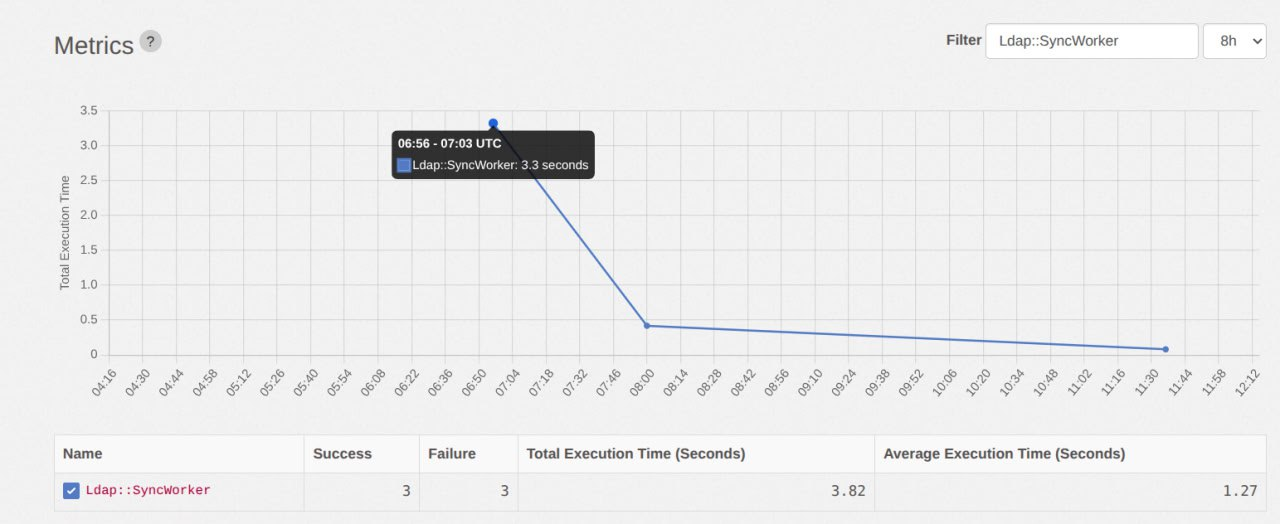
/admin/sidekiq/metrics?substr=SyncWorker&period=8h. The chart displays call statistics; the table below shows the number of successful and failed LDAP synchronization runs.
To view the full synchronization logs:
-
On the worker page
/admin/sidekiq/cron/namespaces/default/jobs/ldap_sync_worker, find the run events table named “History”. The first row corresponds to the most recent run. Copy the value in the JID (Job ID) column — you will need it to search the logs.
-
Collect the Sidekiq log entries of that run, substituting the copied JID:
- Linux package
- Omnibus Docker
- Helm Chart
- Deckhouse Kubernetes Platform module
sudo grep '<JID>' /var/log/gitlab/sidekiq/currentdocker exec code grep '<JID>' /var/log/gitlab/sidekiq/currentd8 k -n code logs -l app.kubernetes.io/component=sidekiq | jq 'select(.jid=="<JID>")'d8 k -n d8-code -l app.kubernetes.io/component=sidekiq get pod -o NAME d8 k -n d8-code logs <POD_NAME> -c sidekiq | jq 'select(.jid=="<JID>")'
Old logs are removed by rotation over time, so they may become unavailable. If needed, rerun the synchronization and collect the latest logs.
LDAP Sync behavior
Synchronization algorithm
LDAP Sync uses a flat, non-recursive synchronization algorithm:
- Group retrieval. An LDAP query retrieves all groups based on the configured
base,filter, andscopeparameters. - Member extraction. For each discovered group, LDAP Sync reads the membership attributes:
member,uniquemember,memberof,memberuid,submember. - User matching. Each DN from the membership attributes is matched against
Identity.extern_uidin the database. - Ignoring unknown DNs. If a DN does not match a known user, it is skipped. For example, this may be the DN of a nested group.
Cyclic group dependencies
Cyclic dependencies in the LDAP group hierarchy do not cause synchronization errors. LDAP Sync processes groups in a flat way, according to the configured filter, and does not attempt to reconstruct the LDAP tree structure.
Because recursive traversal of nested groups is not performed, cycles do not affect the synchronization result.
Nested groups and transitivity
LDAP Sync does not support transitivity for nested groups.
During synchronization, LDAP Sync processes only the direct values of a group’s membership attributes and does not recursively traverse nested groups.
If one LDAP group contains another group as a member, users from the nested group are not automatically added to the parent group.
For synchronization to work correctly, all required user DNs must be present directly in the group’s membership attributes.
If nested groups must be taken into account, this must be implemented on the LDAP server side. For example, the submember attribute can be populated with the full list of transitive members.
This approach simplifies synchronization and avoids issues related to recursive group processing.
Creating a local account when LDAP synchronization is enabled
Local accounts can still be created and used even when LDAP synchronization is enabled.
Such users sign in through the web interface while password authentication for the web interface is on (see Sign-in restrictions and password authentication).